Implementation guide
How a rollout goes, and what it looks like on a device
Moving an organisation to “signed macros only” is a short, ordered job. This page is the shape of it, and four screenshots from a real Windows PC showing the state before and after.
How a rollout goes
Trust first, policy last
The root and the publisher are harmless on their own. The policy stops every unsigned macro the moment it lands, so it goes out last.
Three things go out to every device, in this order: your organisation’s root certificate into Trusted Root Certification Authorities, its signing certificate into Trusted Publishers, and then the macro policy. Each goes to a pilot group first: IT plus one team that lives in macro-heavy spreadsheets. While the trust is landing, the macros that team relies on are signed and the signed copies put back where people open them.
The policy comes in two versions for two groups of users: everyone gets “Disable all macros without notification”; the users with a recorded business requirement get “Disable all macros except digitally signed macros”. The rollout bundle you download from the dashboard carries all of it with your names filled in: the two certificates, importable Intune policies for both groups, the scripts that put the signing certificate into Trusted Publishers, the Group Policy fallback, and a verification script that prints, from any device, the effective setting per application and the two certificate stores, and for a given file who signed it and whether the device trusts them.
What you keep for an assessor: screenshots of the Trust Center’s Macro Settings and Trusted Publishers pages from a device in each group, the verification script’s output with the device name and date, the approval record behind the approved-user group, the signing certificate’s thumbprint and expiry, and the signing record from the dashboard.
Before and after
What it looks like on a device
Four screenshots from a proof run on a Windows 11 PC with Microsoft 365 Apps. The organisation is “Live Alpha”, a test customer; nothing was staged by hand.
Before: nothing signed, nothing trusted
![Excel's Digital Signature dialog for the unsigned workbook: The VBA project is currently signed as, Certificate name: [No certificate]](assets/img/walkthrough/unsigned-vbe-signature.png)
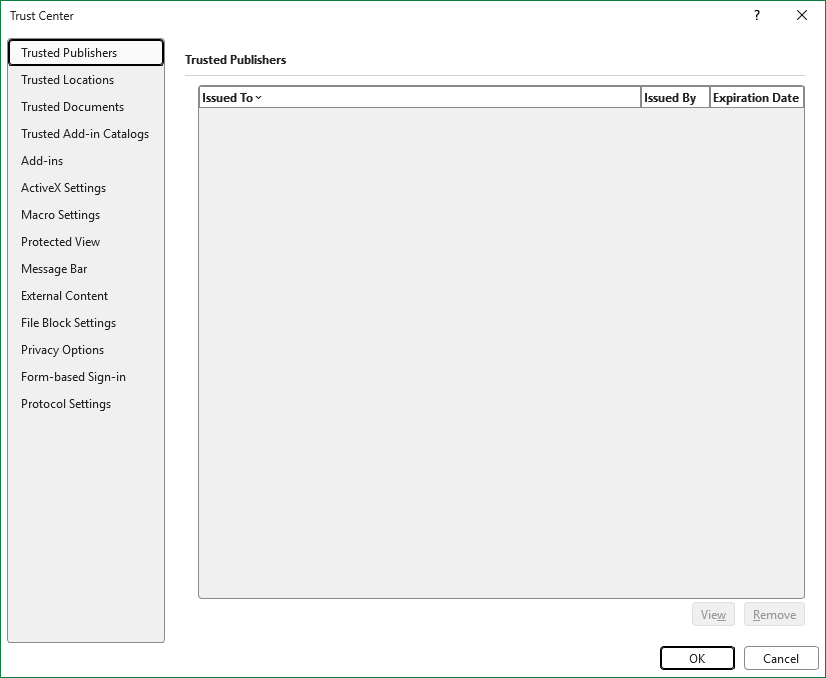
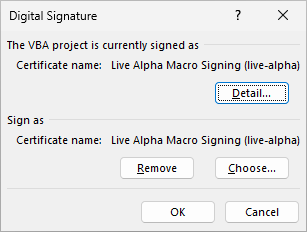
After: trusted, signed, and running without a prompt
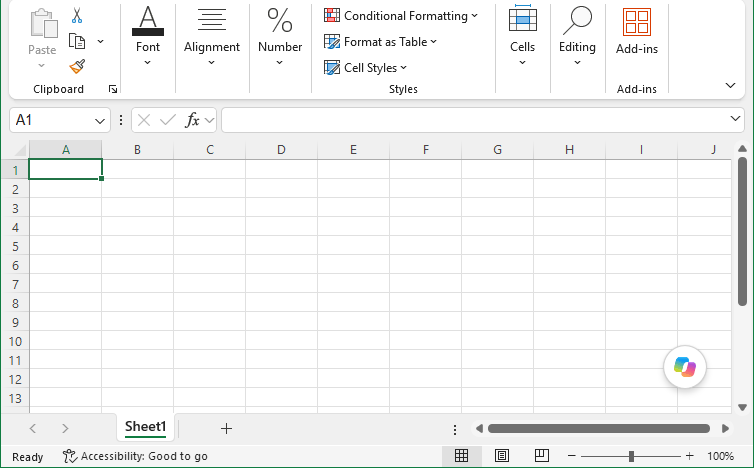
On the same device an unsigned copy of that workbook, and a copy signed by another organisation’s certificate, are refused: the macro does not run and no Enable Content button is offered.
The full walkthrough, every screenshot of all seven steps with the text of every dialog, is inside the product’s rollout guide for customers. If you would like us to run the rollout for you, see the implementation service and get in touch.